Design images with Figma
Export Figma designs to an imgrender blueprint in one click
Migration notice
This plugin is only for the legacy API and no longer receives new features.
We strongly recommend migrating to the Generate image from template API. Design your template in HTML and define variables in the template editor; once it's published, you only need to pass in variables to generate images:
- HTML-based templates: Use the familiar tag structure of front-end development instead of the complex "blueprint" JSON protocol.
- Modern styling: Full support for inline styles (
style) and Tailwind CSS classes for quick layout. - Variables and conditional rendering: Reduce the data you need to send with each request.
- Multiple export formats: Export high-quality images as WebP, PNG, or JPEG.
imgrender blueprints have many parameters, which makes them complex to configure.
That's why we provide a Figma plugin: you can design an image in Figma and then use the plugin to export the design to an imgrender blueprint in one click.
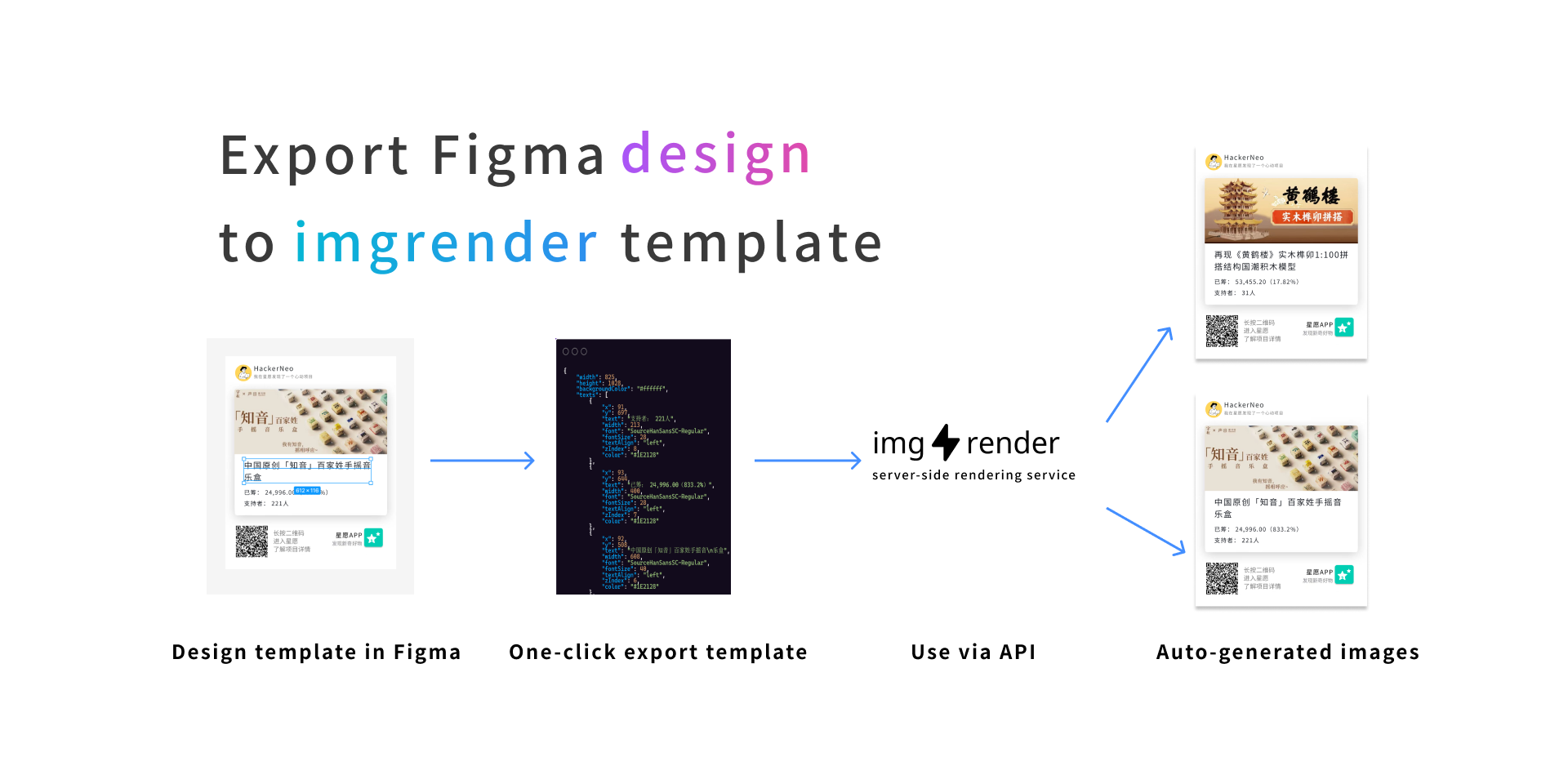
How to install the plugin
To use the Figma plugin, you need to create a Figma account. Then install the plugin:
-
Open the imgrender Figma plugin page.
-
Click Try it out. This redirects you to a new Figma design file and opens the plugin preview dialog.
-
Click the "Save" icon to save the plugin.
-
Click the "Run" button to run the plugin.
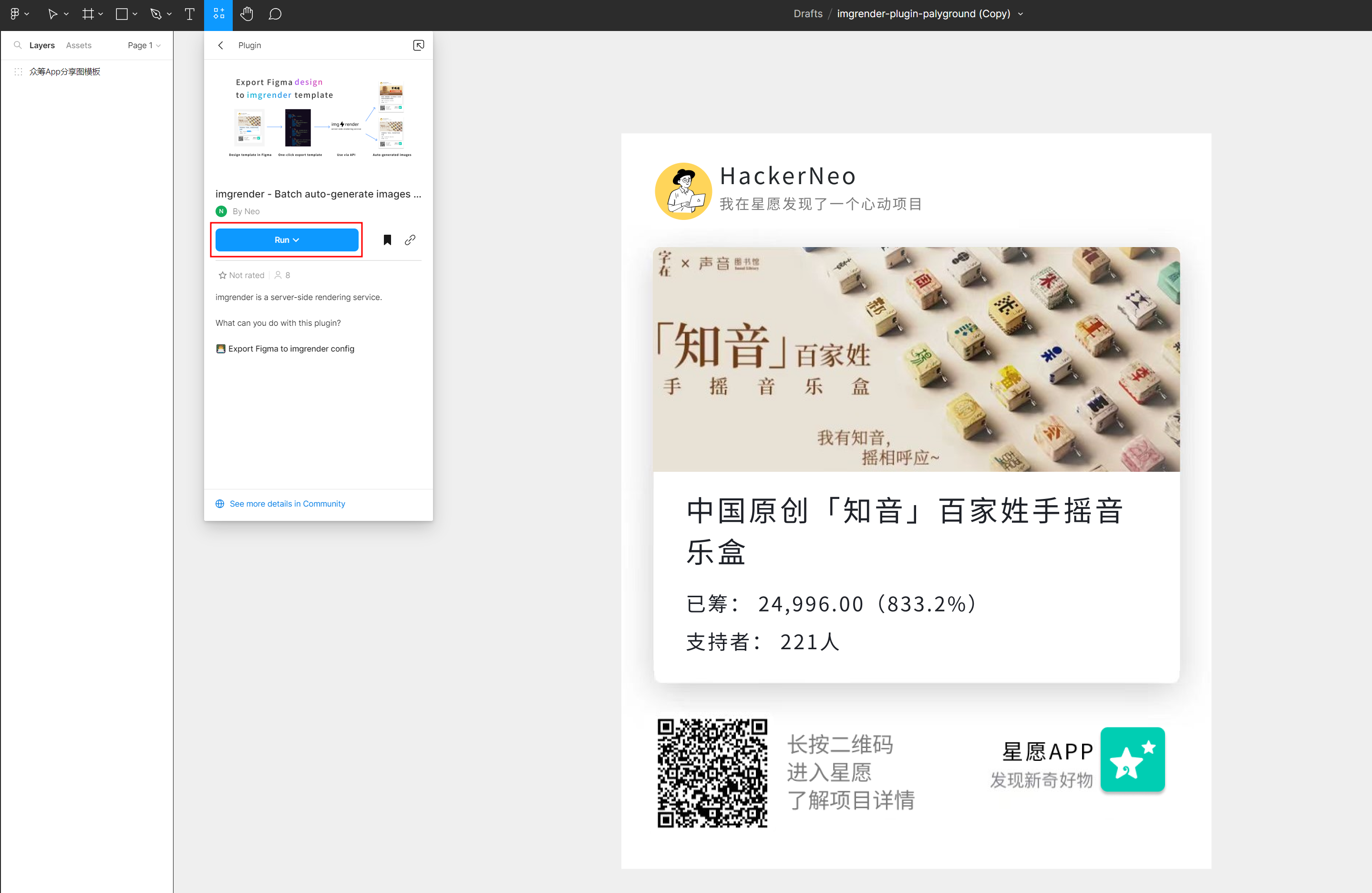
How to use the plugin
-
After you run the plugin, its UI is displayed.
-
Design your image in Figma.
-
Select the design.
-
Click the "Output" button in the plugin UI. The design is converted to an imgrender blueprint and copied to your clipboard automatically.
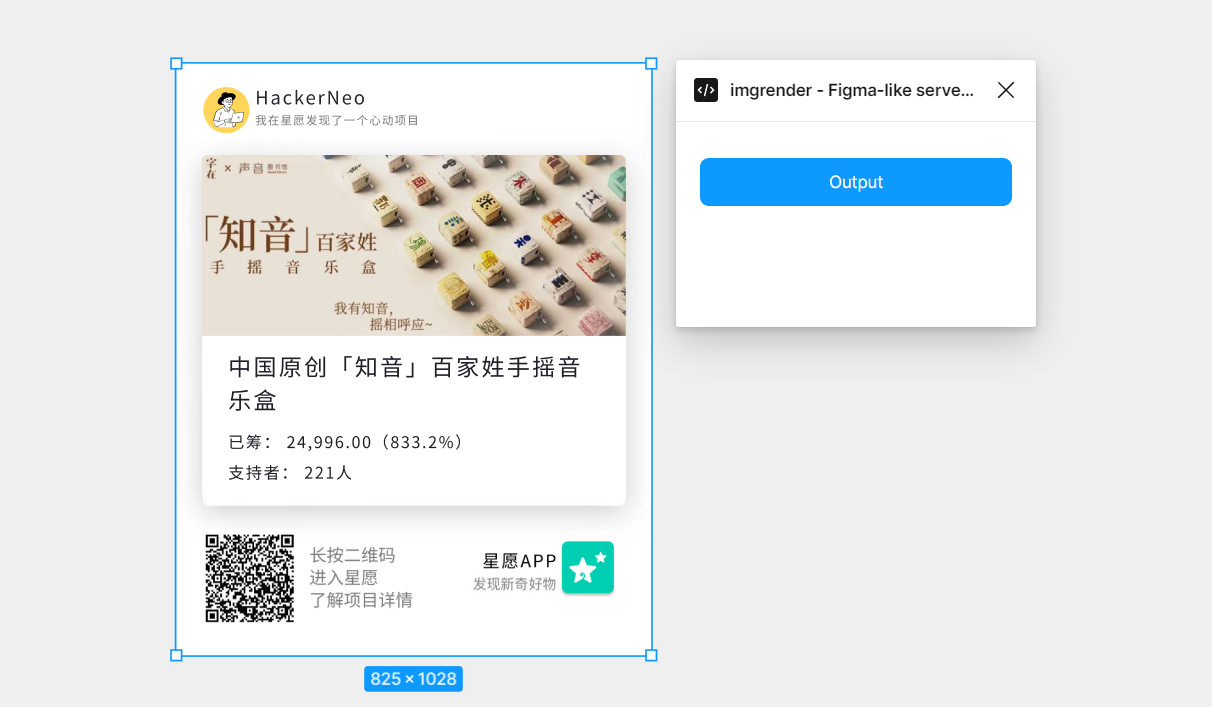
Notes
-
The plugin requires the selection to be a single layer. Before exporting, group the elements of your design.
-
The plugin currently supports these Figma elements: rectangles, lines, text, and images. QR code elements still need to be added to the blueprint manually.
-
Borders of rectangles and images only support sharp (mitered) corners.
-
Images can't be retrieved from Figma directly yet. When exporting, the
urlof image elements is always set toPlease replace with accessible image url. After exporting, replace it with the corresponding image URL. -
Text currently only supports the Source Han Sans SC font family. If you choose another font, it will be exported as
SourceHanSansSC-Normal. After exporting, replace it with the font you want.